

Overview
Kelviq’s checkout system:- Powers your sales - Collect payments and create customer subscriptions
- Integrates with Stripe - Uses Stripe as the payment processor
- Highly configurable - Control plans, pricing, trial periods, and more
- Multi-currency ready - Support customers worldwide
- Easy to embed - Generate links for any product and plans
Generating Checkout Links
Checkout links are generated at the product level. Each link can include one or more plans.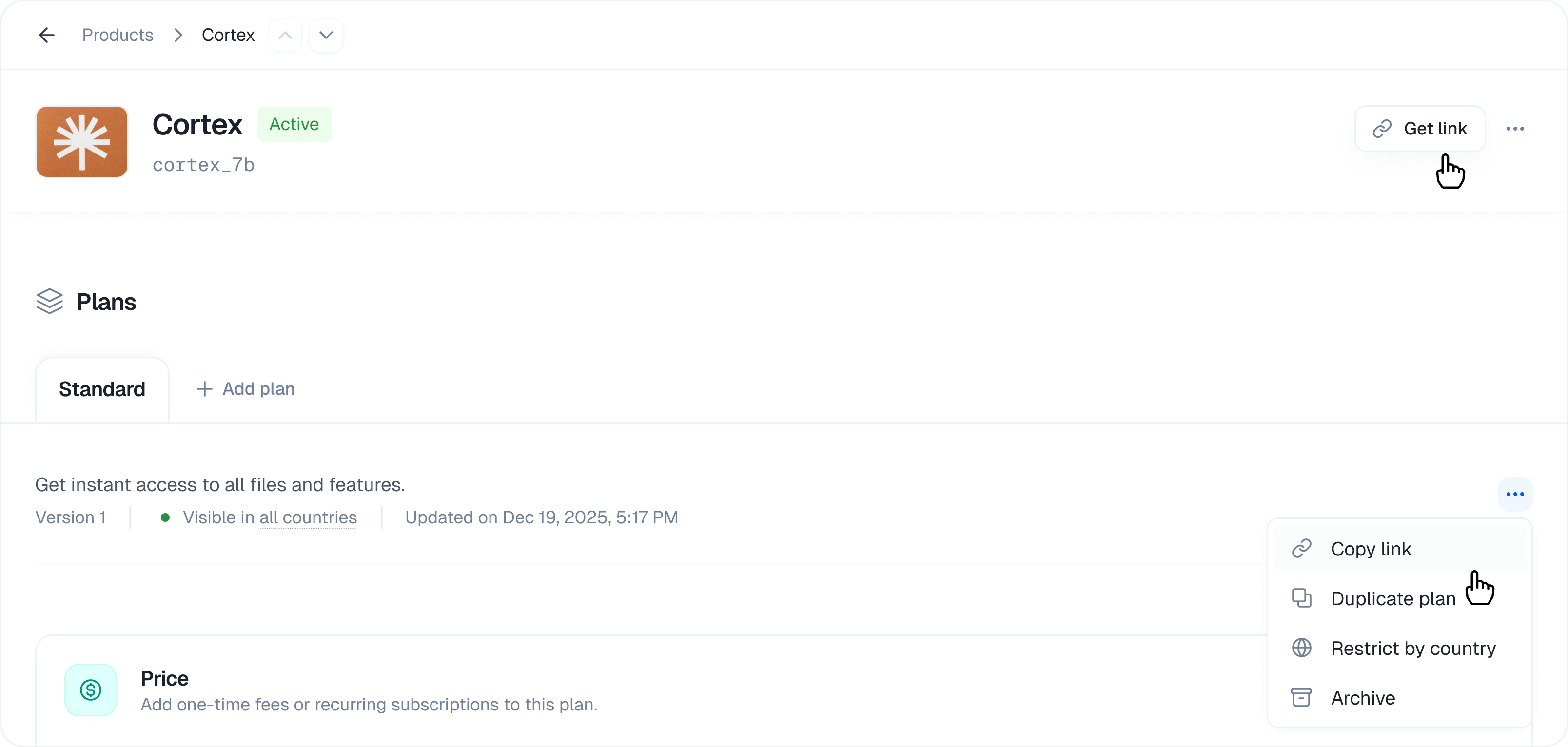
Quick Start
- Go to Products → Select your product
- Click “Generate Checkout Link” → Opens the link builder
- Select plans → Choose which plans to include
- Configure options → Set defaults and features
- Copy link → Share with customers
Link Format
A production checkout link starts with your product UUID:https://www.kelviq.com/sandbox/buy/{PRODUCT_UUID}/. Copy the link from the dashboard so the environment and product UUID are correct. The old product identifier is not used in checkout URLs.
Add query parameters to control what the customer sees:
For example:
success_url and any other parameter value that contains reserved characters.
See every supported static checkout parameter and complete examples →
Multi-Plan Checkout
Include multiple plans in a single checkout to let customers choose their tier.Configuration
Plans Configuration
- Select which plans are enabled (shown to customer)
- Choose a recommended plan (highlighted by default)
- Cannot disable all plans
- Disabled plans don’t appear in checkout
Example: Multi-Plan Pricing
Your product has 3 plans: Free, Pro, EnterpriseBilling Periods & Pricing
Supported Billing Periods
Plans in Kelviq can support multiple billing periods:Setting Default Billing Period
Configure which billing period is pre-selected for each plan:Pricing by Period
Different plans can have different pricing for the same period:Free Trials
Offer free trial periods before charging customers.Configuring Trials
- Open your plan → Go to the plan’s pricing section
- Enable Free Trial → Toggle the trial option
- Set duration → 1-365 days (default 7 days)
- Save plan
Trial Behavior
When a customer starts a trial:Trial Configuration Example
Advanced Checkout Configuration
Success and Cancellation URLs
The success URL is optional when you link to or embed Kelviq Checkout directly. Add it only when you want Kelviq to redirect the customer to your own confirmation or onboarding page after checkout succeeds:success_url parameter when you want this redirect:
successUrl field is required. You can also optionally provide a cancelUrl to redirect the customer if they cancel payment.
Checkout Session Options
POST /api/v1/checkout/ accepts options that let you tailor a checkout session without changing the underlying plan.
For a complete request, webhook example, and implementation guidance, see Add metadata to checkout.
Discount Code Integration
Allow customers to apply discount codes at checkout: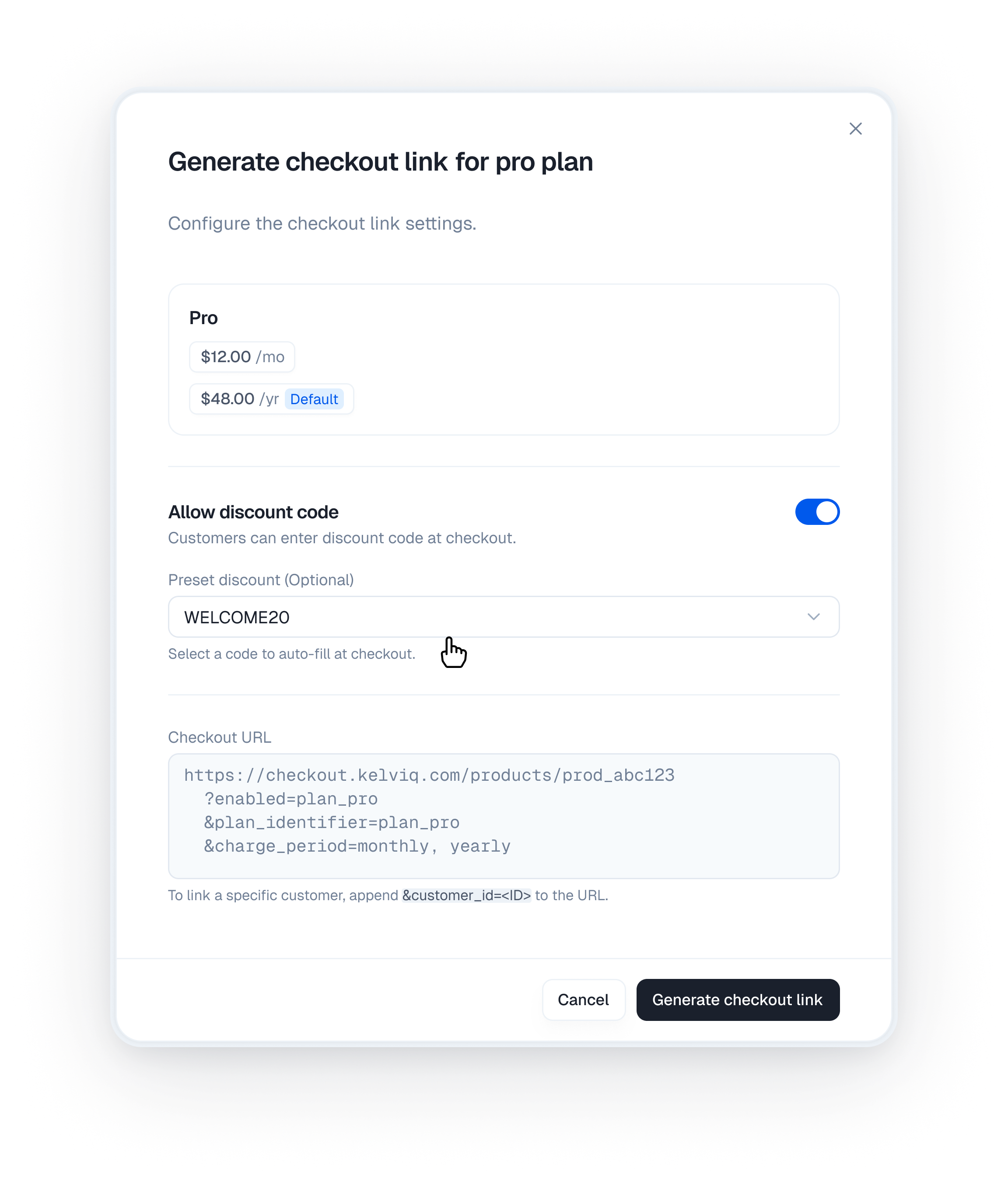
Tax Collection
Kelviq can collect and handle taxes: Tax ID Collection:- Customers can enter their tax ID (VAT number, EIN, etc.)
- Used to determine applicable taxes
- Required for some jurisdictions
- Enable/disable tax collection per product
- Taxes are calculated based on customer location and tax ID
Country Restrictions
Restrict plans to specific countries:Checkout Session Lifecycle
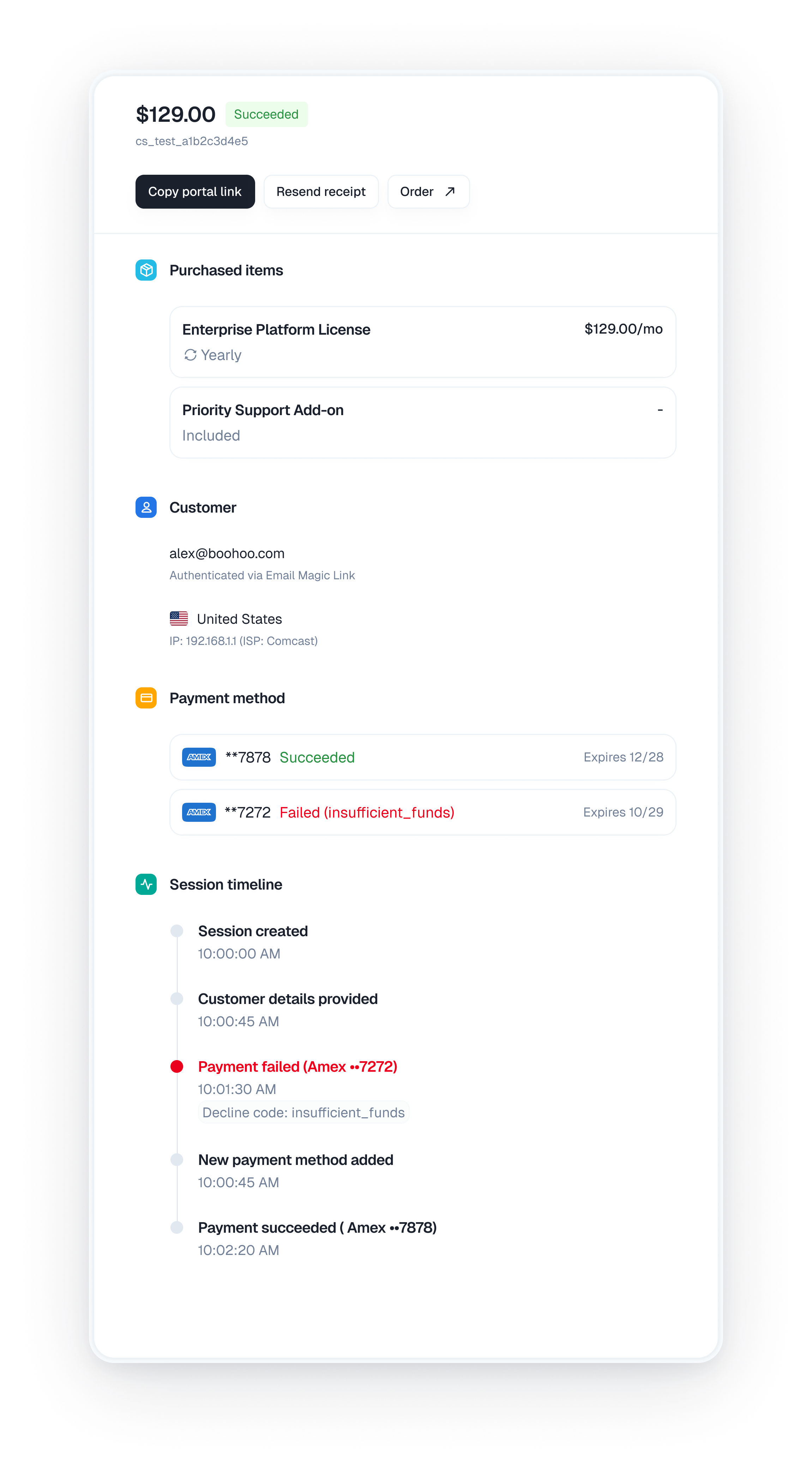
Checkout sessions track the state of each checkout attempt:Session States
Monitoring Checkouts
View checkout sessions in the dashboard: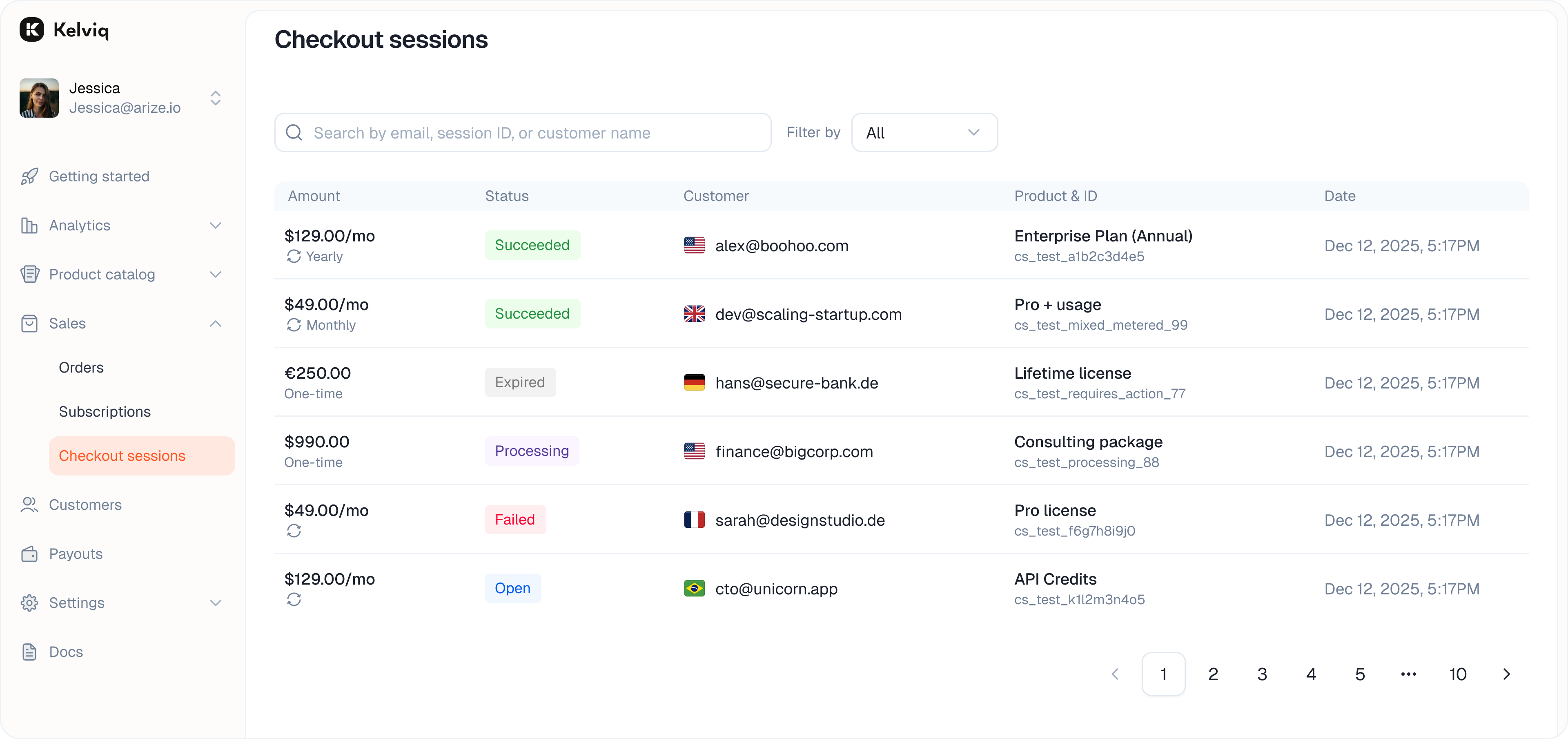
- Go to Sales → Checkout sessions
- View sessions → See all active and completed checkouts
- Filter by status → Open, Success, Closed, Expired
- Conversion metrics → Track conversion rates
Create Checkout Sessions via API
You can programmatically create checkout sessions using the SDK:- Python
- Node.js
Checkout Flow Examples
Example 1: Simple Product
One plan, one price:Example 2: Tiered Plans
Multiple plans, multiple billing periods:Example 3: Free + Paid
Offer free plan with paid upgrades:Payment Methods
Kelviq uses Stripe as its payment processor. Stripe supports:- Credit/Debit Cards - Visa, Mastercard, American Express, Discover
- Digital Wallets - Apple Pay, Google Pay
- UPI and UPI AutoPay - UPI payments and recurring subscription mandates for eligible customers in India
- Bank Transfers - ACH, SEPA, etc. (regional)
- Local Methods - iDEAL, Bancontact, Giropay, EPS (regional)
Payment method availability depends on customer location and Stripe’s local support. Cards are universally supported.
Does Kelviq support UPI AutoPay?
Yes. Kelviq supports UPI AutoPay for recurring subscriptions. Eligible customers in India can authorize the recurring payment at checkout. Availability depends on support from the customer’s bank and UPI app.Currency & Localization
Multi-Currency Support
Prices are stored per currency. When customers checkout:Pricing Configuration
Set prices for each currency you support:Regional Pricing
Offer different prices based on customer location (PPP - Purchasing Power Parity):Testing Checkout
Sandbox Testing
Test checkouts without processing real payments:- Use Stripe test cards → Use 4242 4242 4242 4242
- Test various scenarios → Successful payment, declined card, etc.
- Monitor test checkouts → View in your dashboard