

If you want to bill for the number of seats that were actually active during the month, use pay as you go instead. Report the active-seat total with
SET and let Kelviq bill it at the end of the period.How the price is calculated
A plan can consist entirely of seat charges or combine them with a fixed base price.Create the seat feature
These steps create a Meter feature specifically for seats. For the general dashboard and API workflows, see Create a feature in Kelviq.- Open Product catalog → Features.
- Click Create feature.
- Enter a clear name such as
Seats. - Use a stable identifier such as
seats. - Select Meter as the feature type.
- Set the singular unit to
seatand the plural unit toseats. - Create the feature.
Purchased-seat pricing does not require usage reports. Although Seats is a Meter feature, its billable quantity comes from checkout and subscription updates.
Add the seat price to a plan
- Open the product and edit the plan you want to sell.
- Make the plan Paid and select its billing periods, such as Monthly and Yearly.
- Enter the plan’s base price. Use this for the fixed part of the subscription, if any.
- Open Usage charges.

- Select the
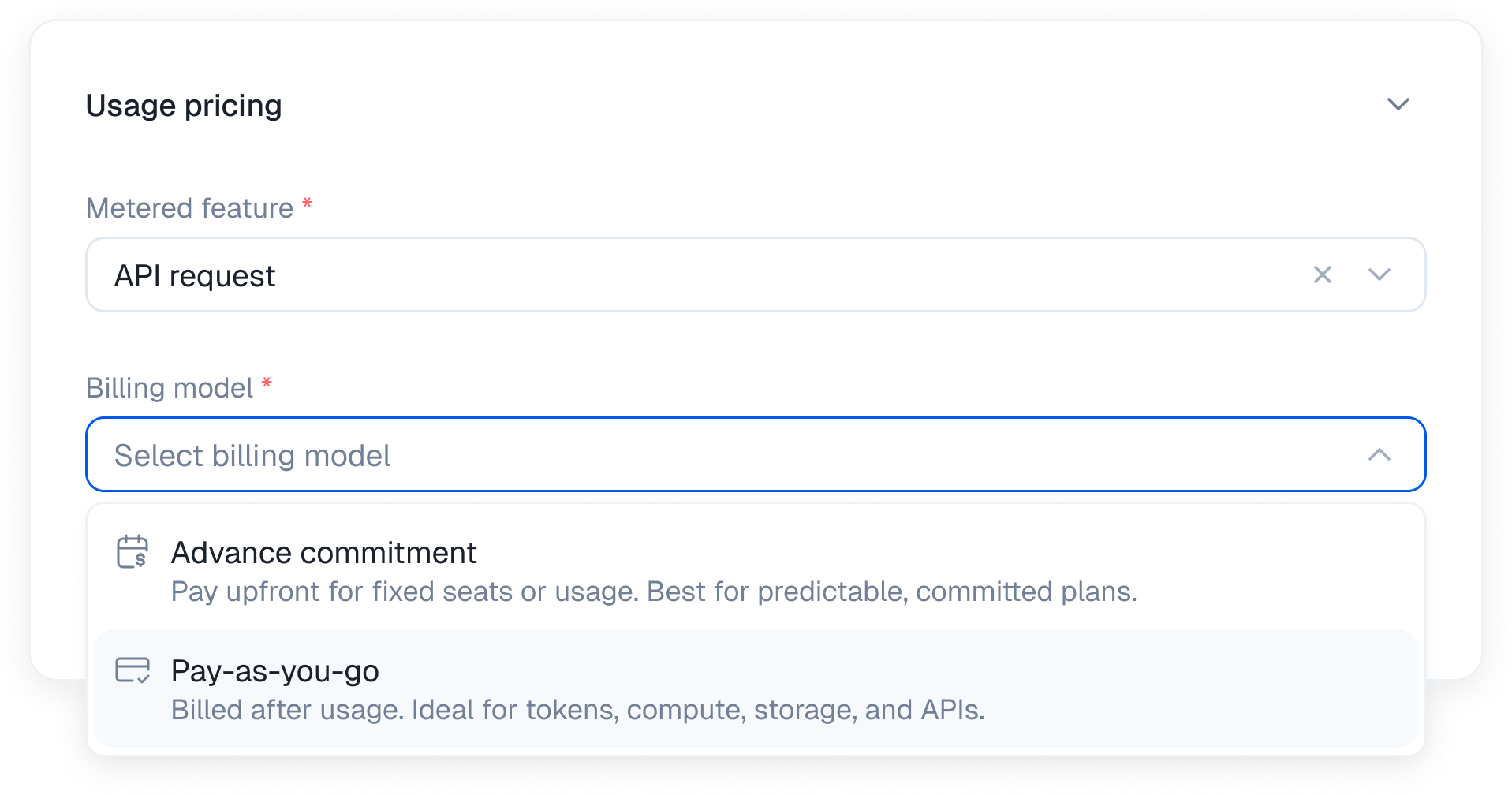
seatsfeature. - For Billing model, choose Advance commitment. The customer is purchasing the seats before using them.
- For Pricing model, choose Flat for a standard per-seat price.
- Enter the price per unit for every billing period. For example, use
$12under Monthly and$120under Yearly. - Save the price and publish the plan.
Other ways to price seats
Most teams start with one price per seat. You can also sell seats in packages, lower the rate at higher quantities, or charge a fixed amount for each range.
See Usage based pricing for the calculation rules for Package, Tiered, Volume, and Stair-step pricing.
Send the seat count to checkout
Kelviq’s pricing UI can show a quantity input for a priced Meter feature. If you build your own pricing page, send the selected seat count in the checkout request.Node.js
REST API
features array uses the feature identifier, not its dashboard UUID. quantity is the number of seats the customer wants to purchase.
See Create a checkout session for the full request schema.
Enforce the purchased limit
After payment and subscription creation, read the customer’s seat entitlement from your backend. For a Meter feature,usageLimit is the purchased capacity.
hasAccess answers whether the customer can use the feature. It does not tell you whether one more team member fits. Compare your active member count with usageLimit for that decision.
Change the seat count
Use the subscription update endpoint when a customer adds or removes seats. Send the complete new quantity, not the difference from the old quantity.planIdentifier and chargePeriod, even when the plan is not changing. After the request succeeds, read the entitlement again before making the additional capacity available.
Before reducing a subscription below the current team size, ask the customer to remove or deactivate members. Otherwise, the subscription and your application’s active-member count will disagree.
See Update a subscription for the complete API request.
Purchased seats versus active seats
Choose one source of truth for billing.
For active-seat billing, configure the Seats feature as Pay as you go and send the current active-seat total with
SET. Do not send both a purchased quantity and usage reports for the same seat charge, or the two models will conflict.
Seats are not license activations
A seat normally represents a member of a team or workspace. A license activation represents a device or software installation. Use seat based pricing when the customer pays for people who can join an account. Use license keys when you need to limit how many devices can activate downloaded software. A single customer may use both, but they should have separate limits.Test in sandbox
- Switch the dashboard to Sandbox.
- Create the Seats feature and a seat based plan there.
- Create a checkout session with a small quantity, such as 3.
- Confirm that checkout shows the expected base and seat charges.
- Complete the test payment.
- Read the
seatsentitlement and confirm that its limit matches the purchased quantity. - Update the subscription to 5 seats and check the entitlement again.
Troubleshooting
The total does not change with the seat count
Confirm that Seats is a Meter feature, that it has a price under Usage charges, and that the checkout request includes the exactseats identifier in features.
The quantity input is missing
Publish the latest version of the plan and check that the seat feature is enabled and priced for the selected billing period.The entitlement has the wrong limit
Check that the checkout, customer, plan, and API key belong to the same environment. Then inspect the checkout or subscription request and confirm thatquantity contains the complete desired seat count.
A team can exceed its purchased seats
Kelviq stores the entitlement, but your application must enforce it when members are invited or activated. Compare the active-member count withusageLimit on your backend.